

Hosting a Static Website on Amazon S3: A Step-by-Step Walkthrough
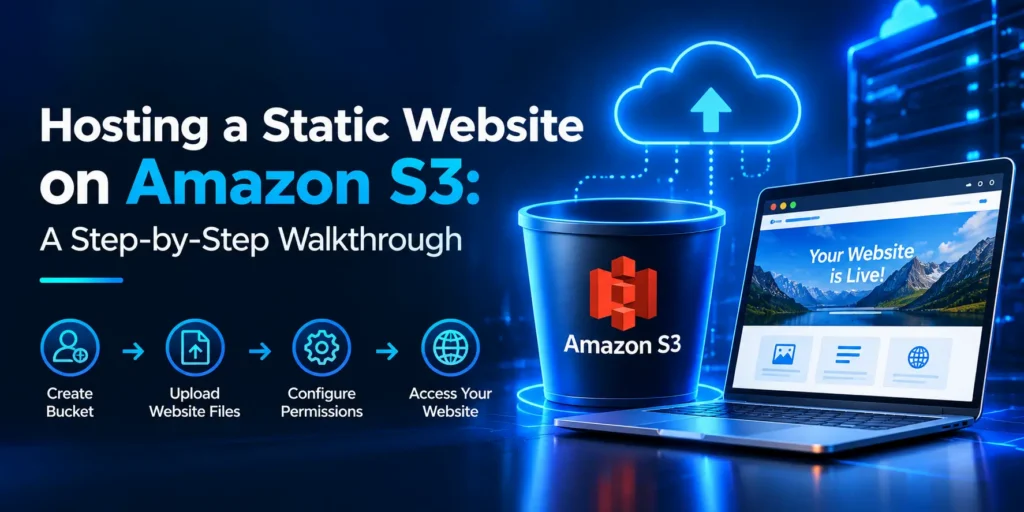
Amazon S3 can host a complete static website with no servers to manage. In this walkthrough, you will go from an empty AWS account to a live website in about 15 minutes.
A static website is made of fixed files (HTML, CSS, JavaScript, images) that the browser downloads as they are. There is no server-side code such as PHP or Node.js. Portfolios, documentation sites.
Prerequisites and key concepts
You need an AWS account (the Free Tier is enough) and one small file saved on your computer: index.html . Any simple HTML page will do, for example, a heading and a paragraph.
Step-by-step walkthrough
1. Create the bucket. Open the S3 console and choose Create bucket. Enter a globally unique name (for example, amzntest-sample001) and pick the AWS Region closest to your visitors. Leave Object Ownership on the default setting (ACLs disabled).
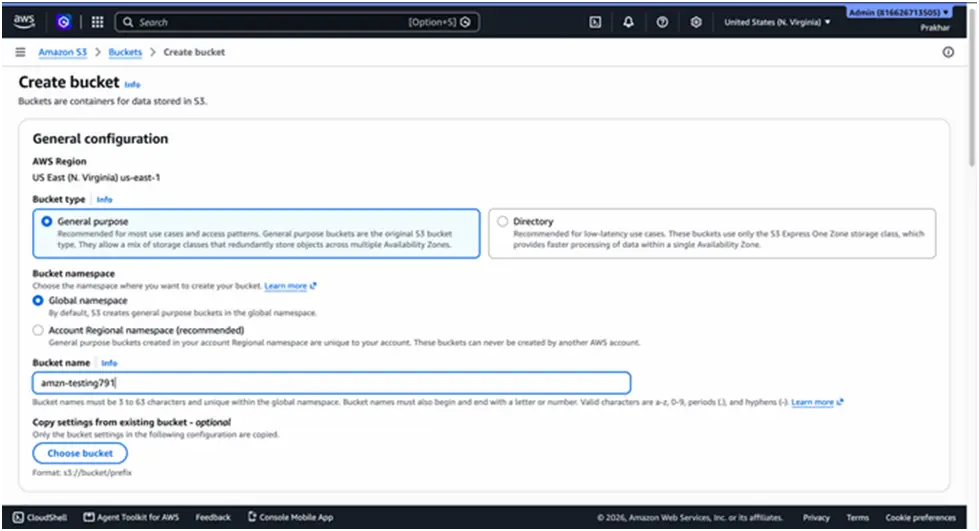
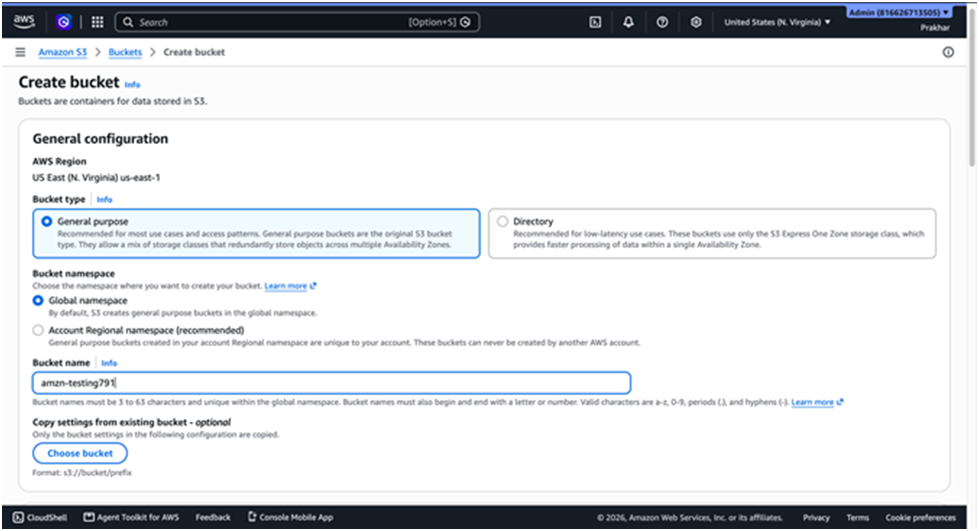
2. Choose Create bucket
3. Upload your files. Open the bucket, choose Upload, add index.html, and select Upload
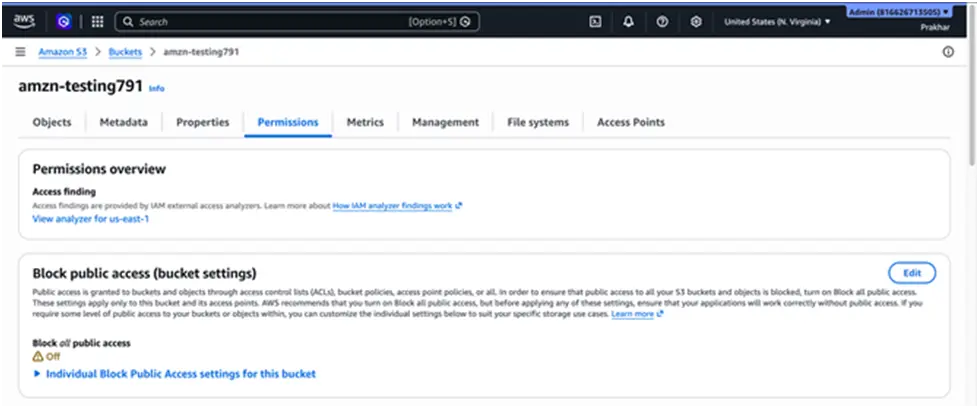
4. Turn off Block Public Access in Permissions: untick Block all public access and tick the acknowledgement that you understand the risk. Only do this for a bucket that holds public website files
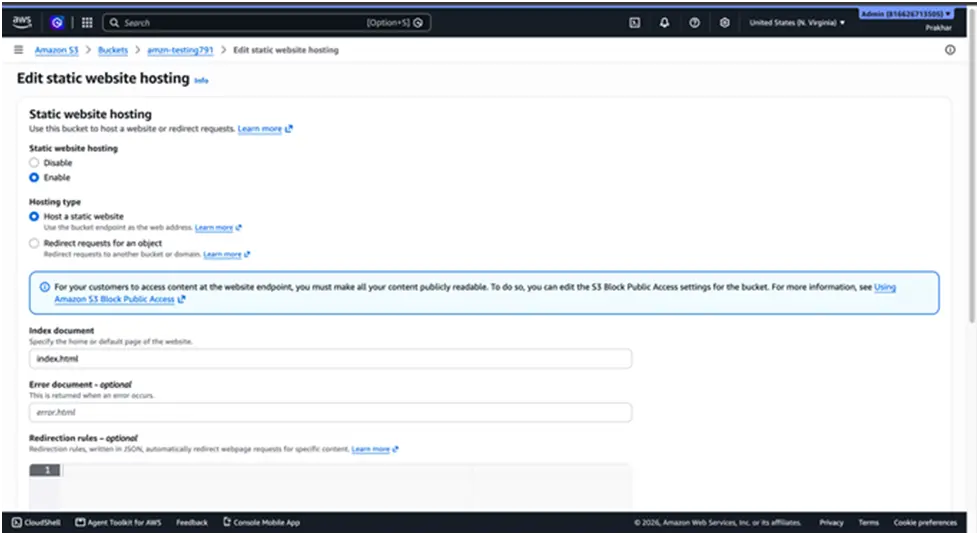
5. Enable static website hosting. Go to the Properties tab and scroll to the bottom. Under Static website hosting, choose Edit, select Enable, set the index document to index.html, then save.
6. Add a bucket policy. Go to the Permissions tab, find Bucket policy, choose Edit, and paste the policy below. Replace YOUR-BUCKET-NAME with your bucket name, then save.
“Statement”: [
{
“Sid”: “PublicReadGetObject”,
“Effect”: “Allow”,
“Principal”: “*”,
“Action”: “s3:GetObject”,
“Resource”: “arn:aws:s3:::YOUR-BUCKET-NAME/*“
}
]
}
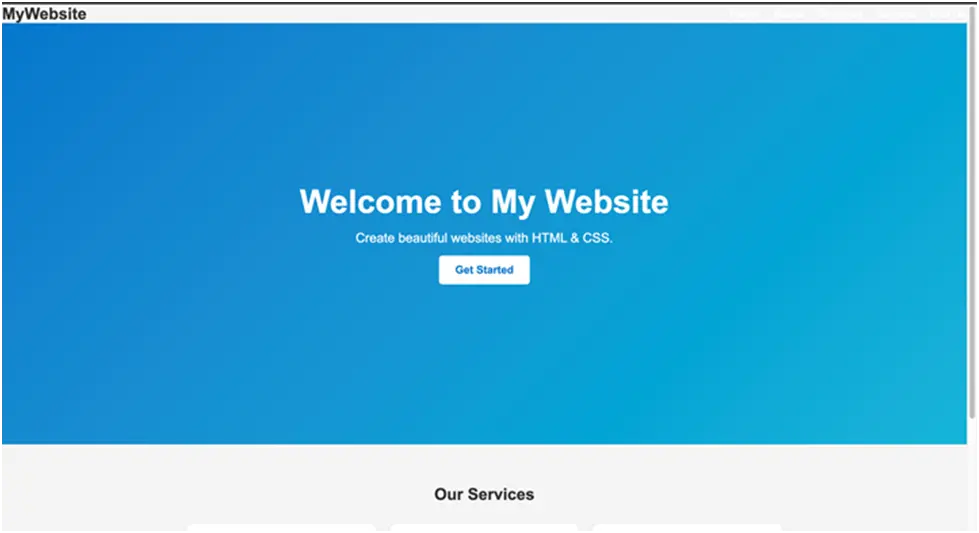
7. Test the site. Return to Properties, scroll to Static website hosting, and open the Bucket website endpoint. Your index.html should load.
Common errors and fixes
| Symptom | Likely cause | Fix |
| 403 Forbidden | Block Public Access is still on, or the bucket policy is missing or has the wrong bucket name | Turn off Block Public Access and re-check the policy’s Resource ARN |
| 404 Not Found on the root URL | The index document name does not match the uploaded file | Match the name exactly, including case (index.html) |
| Browser downloads the file instead of showing it | Wrong Content-Type on the object | Set the metadata to text/html and re-upload |
| Policy will not save | Block Public Access is blocking public policies | Edit Block Public Access first, then save the policy |
About the Author:
Prakhar Maurya is a Cloud Analyst at CRAW Security. He is passionate about AWS cloud computing, infrastructure, and cloud security. He enjoys exploring AWS services, solving real world technical challenges, and continuously expanding my knowledge in cloud technologies.
Read More:
VulnVerse Lab Resolve: Step-by-Step Walkthrough Guide
About Author






 English